
Inspector app
From the first bay to the signed report, on one phone.
RackApp guides your inspection bay by bay. Record damage with photos and measurements, see a suggested class with the limit and rule behind it, decide, and sign the report on site. Everything works without signal.
All 28 screens are clickable, with sample data. No registration.
Set up
A site set up in minutes
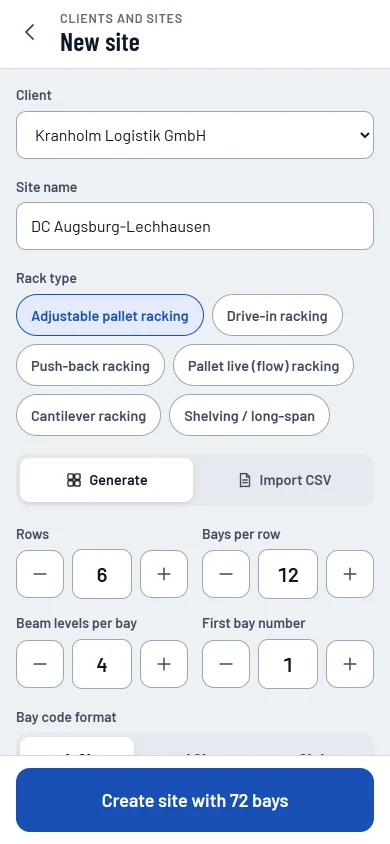
Generate rows, bays and levels with the layout generator. Choose the code format and the first number, add back-to-back sides and exceptions for single rows, or import a CSV. The preview shows every code and the totals before you save.
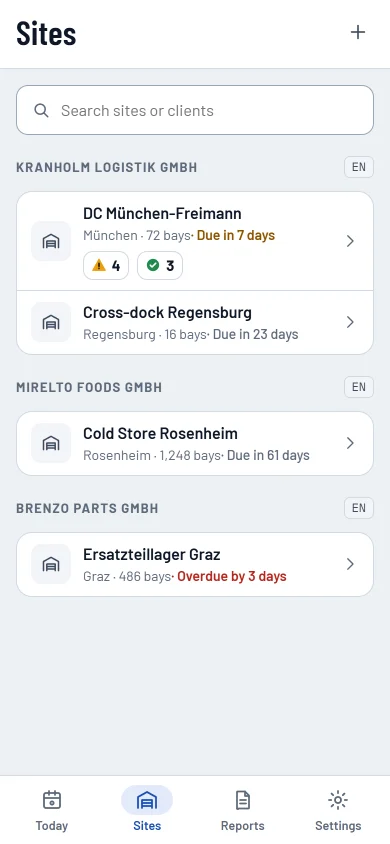
- Sites grouped by client, each with the client's report language
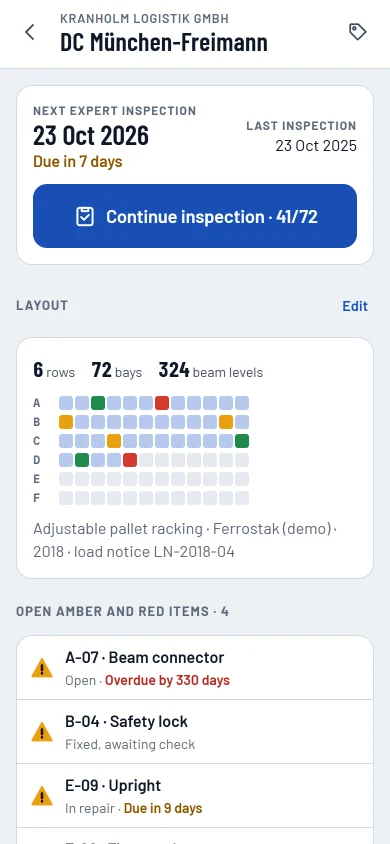
- The next due date and open amber and red items on every site
- A plan of the site, coloured by today's results
Start
Last year's findings come with you
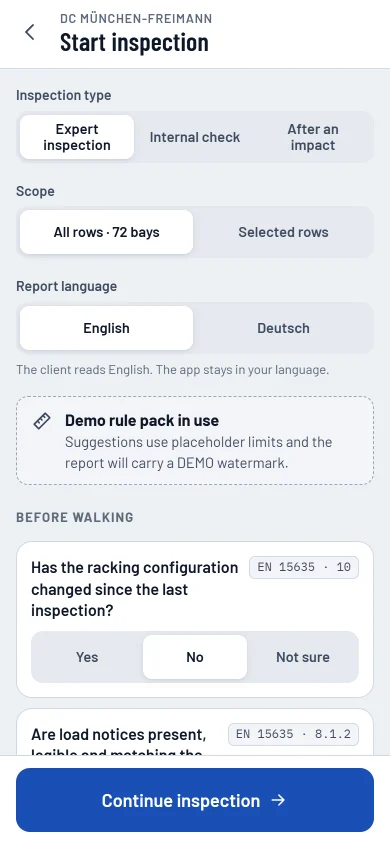
Choose the inspection type and scope, the report language (your client's by default) and the rule pack. The app brings last year's report along and puts every open item back on its bay, ready to re-check. A few questions before the walk go into the report.
Walk
Bay by bay, with gloves on
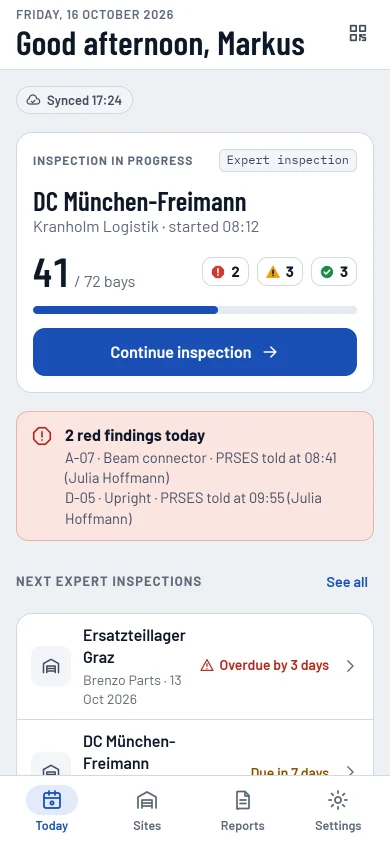
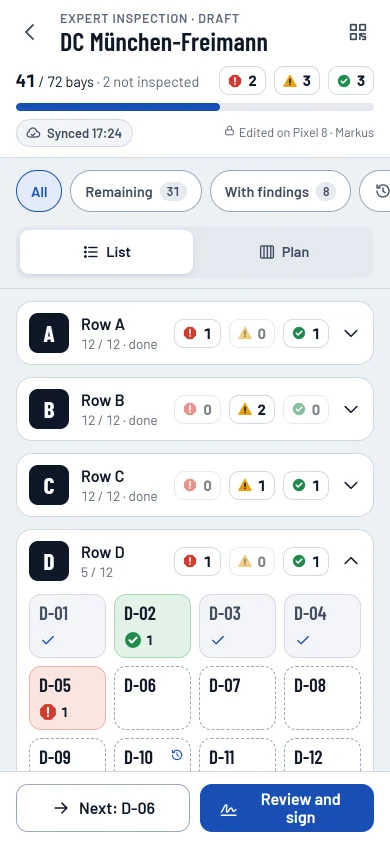
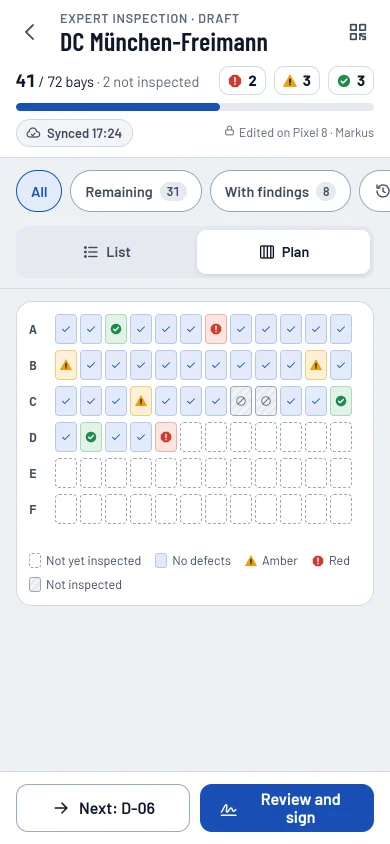
The walk screen shows your progress, the counts by class and whether the phone has synced. Big tiles show each bay's code, its state and its worst class as a shape. Next bay and Review sit within thumb reach.
- Filters for remaining bays, findings and re-checks
- A plan view of the same bays, with shapes and a legend
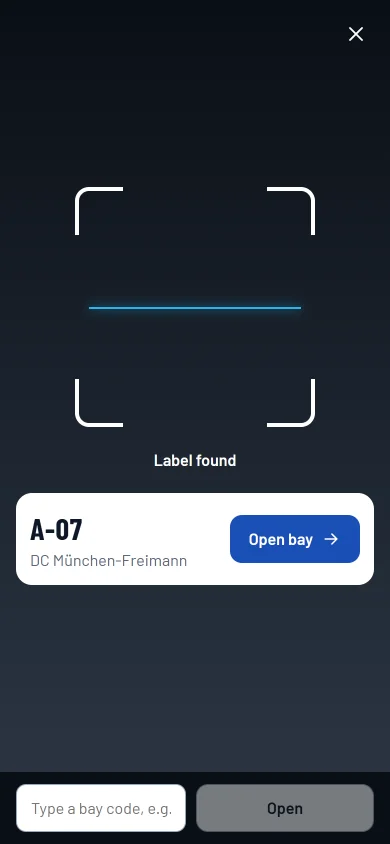
- Scan a bay's QR label to jump straight to it
Bay
One tap when there's nothing wrong
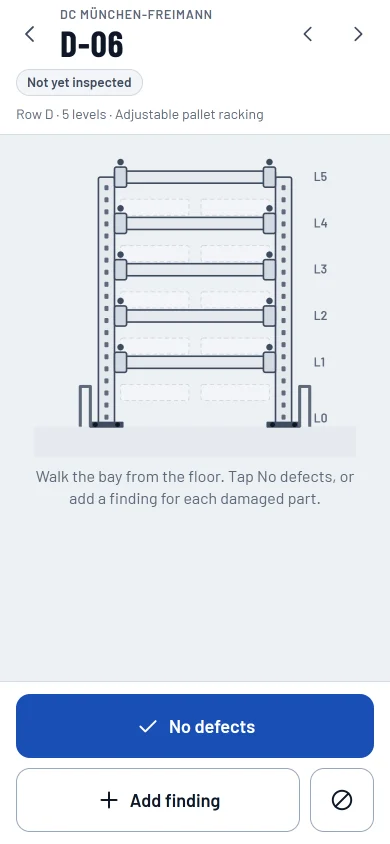
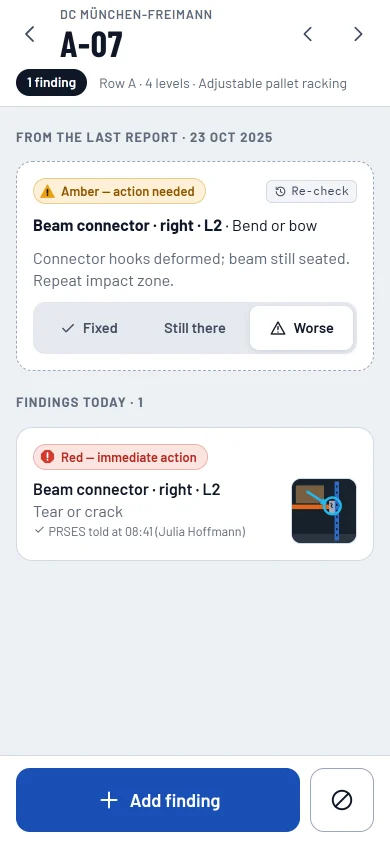
No defects saves the bay and opens the next one. Add finding starts a record, and Not inspected asks for a reason. Last year's items sit on their bay, so you mark each one fixed, still there or worse where you stand.
Record
Record damage. The app suggests, you decide.
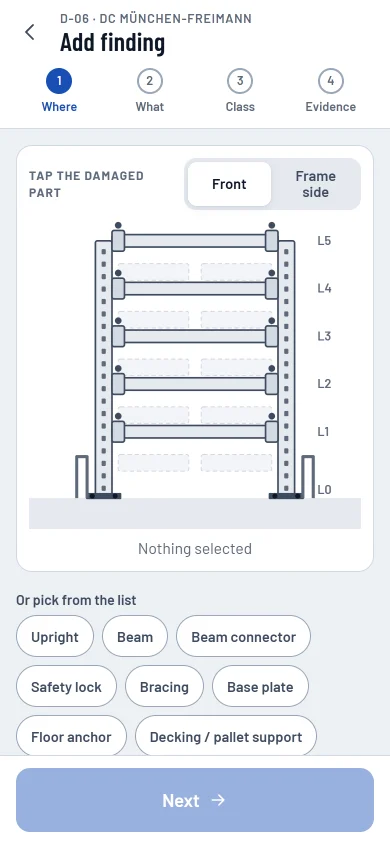
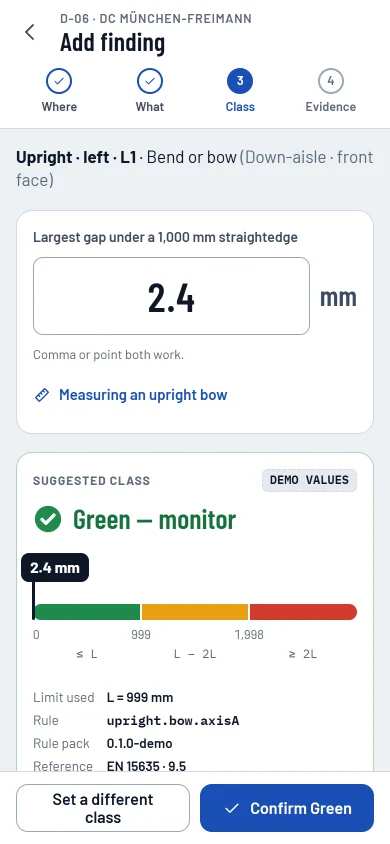
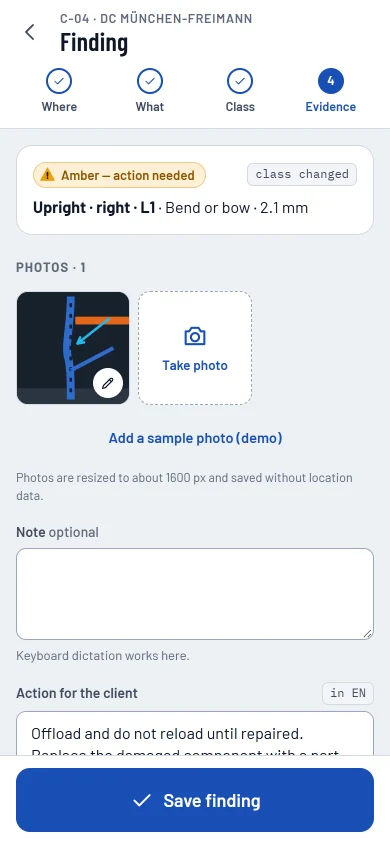
Tap the damaged part on the bay drawing and set the height. Enter the measurement with a comma or a point, and the app suggests a class from your rule pack, showing the limit, the rule and the pack version. Confirm it, or choose another class with a reason; the report keeps both. Where your pack has no limit, the app suggests nothing and the class is your judgement.
- Photos are resized and lose their location data
- Draw circles and arrows on a photo
- The action text and due date follow the class; a different due date needs a reason
Red findings
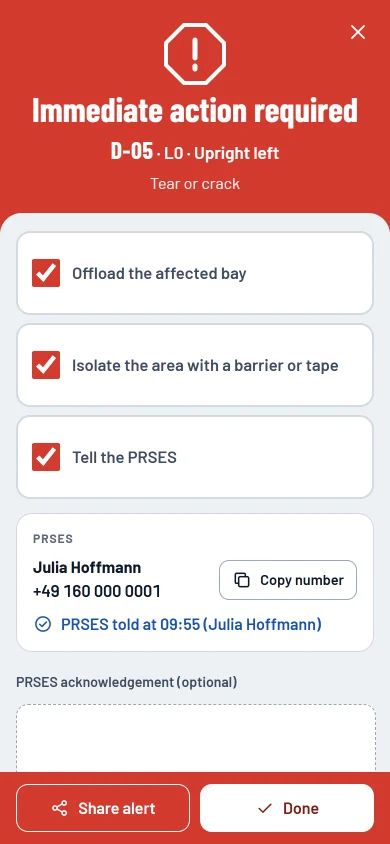
Red findings don't wait for the report
A red finding opens an alert: offload, isolate, and tell the person responsible on site. Copy the bay number, share the alert and record who was told and when. Your client sees it in the portal as soon as your phone has signal.
Sign
Sign on site and send the PDF
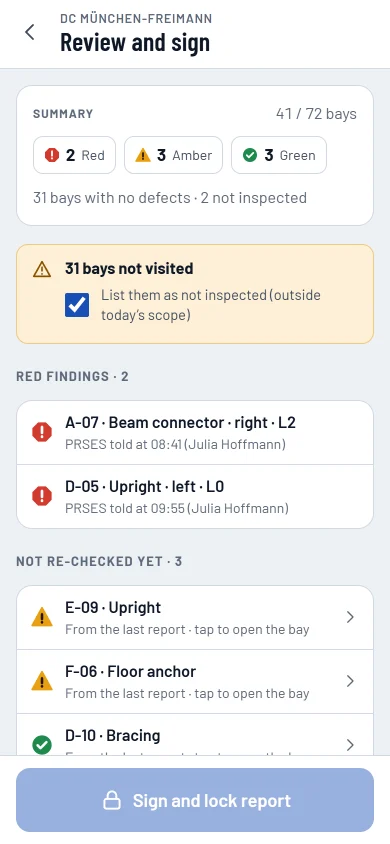
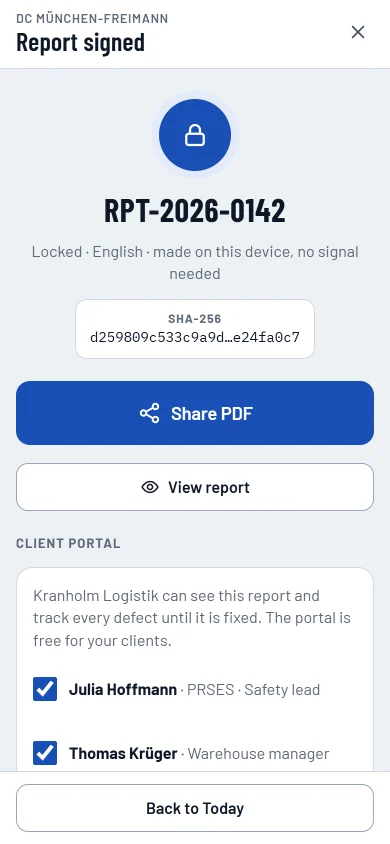
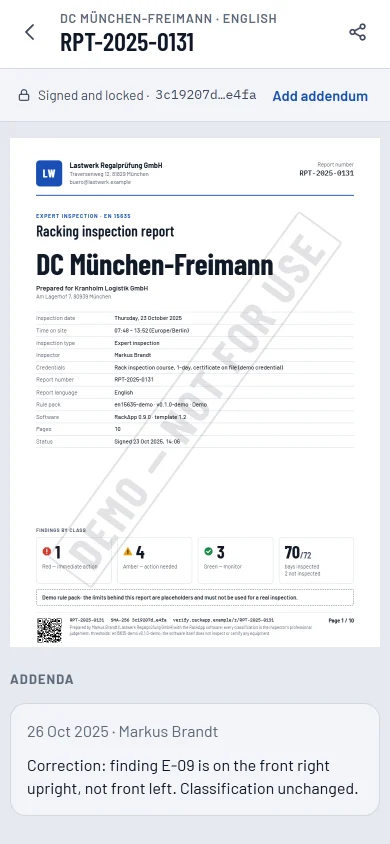
Review the summary, the red items, anything not yet re-checked, the scope and limitations and the next due date. Sign with your finger: the app makes the PDF on the phone, fingerprints it and locks the inspection. Share the PDF and invite your client's people to the free portal.
- One language per report, your client's
- Corrections become dated addenda; the signed report never changes
- Every signed report, with its fingerprint, in one list
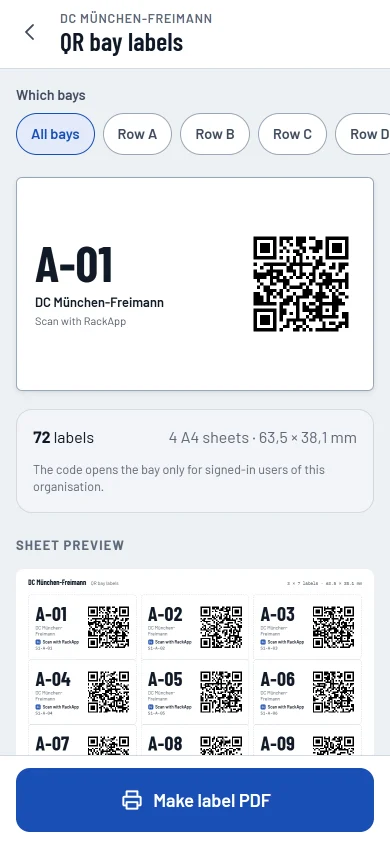
QR labels
A label on every bay
Print label sheets for a whole site: 63.5 × 38.1 mm, 21 to an A4 sheet. Scanning a label opens that bay, but only for people signed in to your organisation.
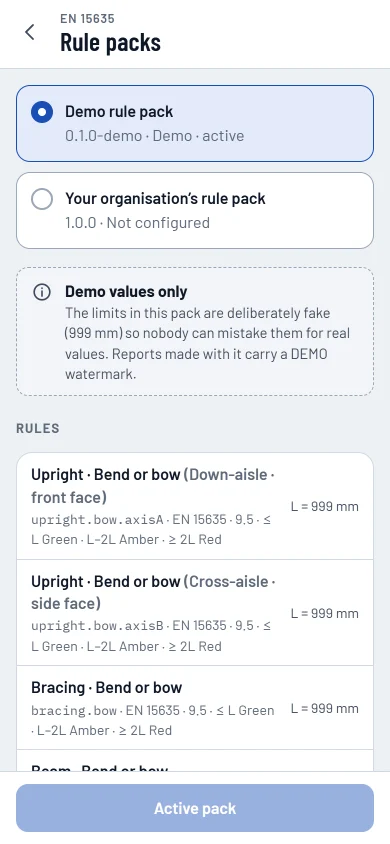
Rule packs
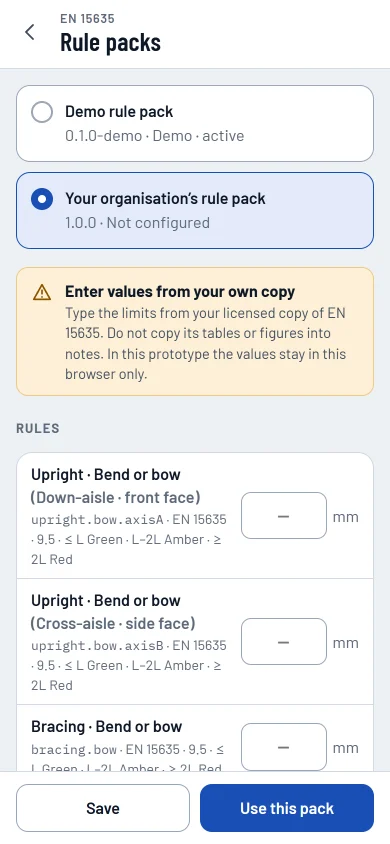
Your limits, from your copy of the standard
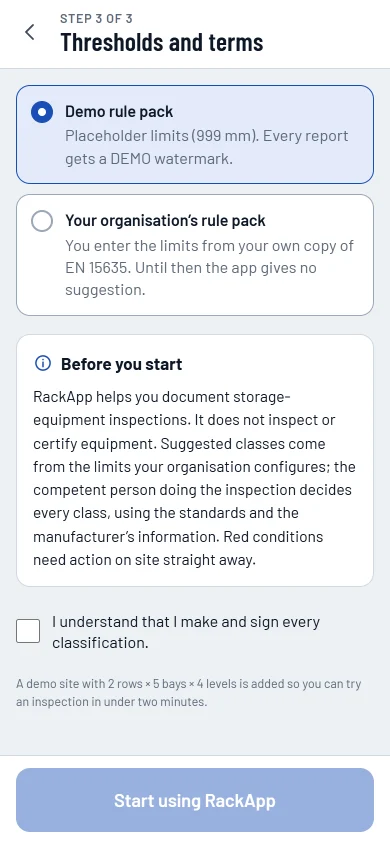
The limits behind each suggestion come from your organisation's rule pack. You enter them once from your own licensed copy of EN 15635, with where each value comes from. RackApp doesn't include the standard's text or values. The sample pack uses placeholder limits of 999 mm and puts a DEMO watermark on its reports.
Getting started
Sign in with a code, then work offline
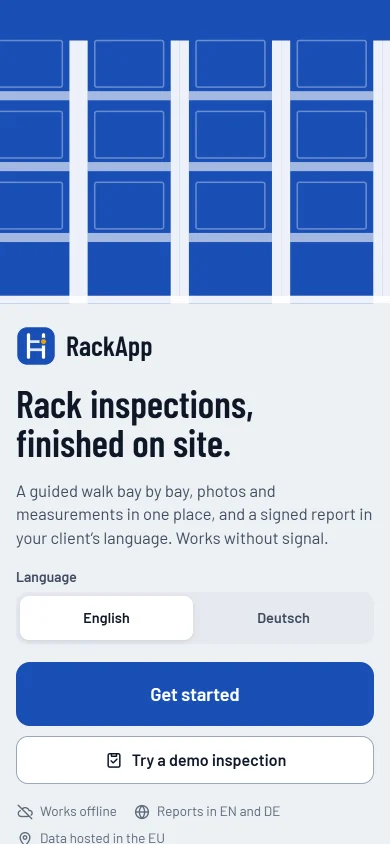
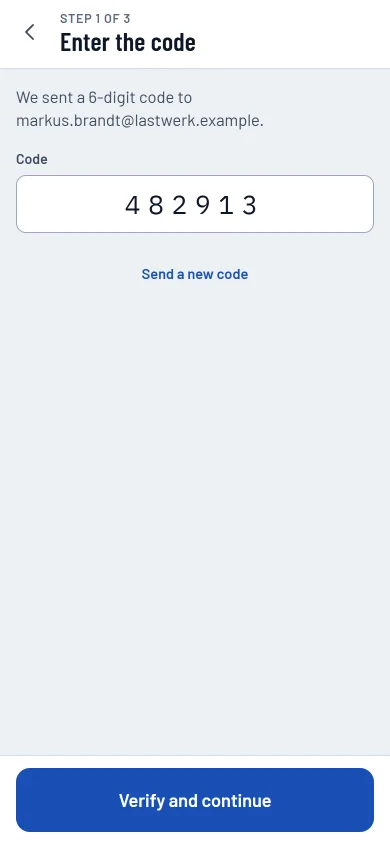
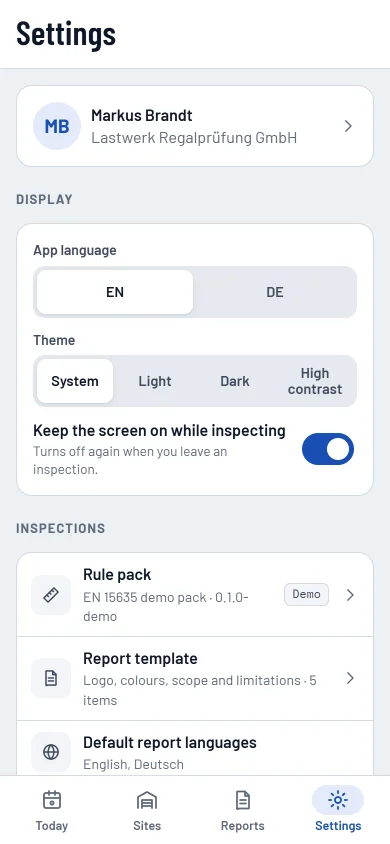
Choose your language, sign in with a one-time code from your email (no password) and fill in your profile and organisation. The app language and the report language are separate settings. Or try a sample inspection without an account.
- Light, dark and high-contrast themes
- Keep the screen on during an inspection
- Export your data at any time
Try a whole inspection in about three minutes
The guided tour takes you from today's inspection to the signed report and the client portal. No sign-up.